
YouTube Updates: How to Use Studio Payment Activity for Multiple Channels Linked to One AdSense Account

YouTube Updates to Studio now make it easier for creators who run more than one channel to view payments in one place. If you manage multiple channels on the same AdSense account, this guide explains what changed, who can access the new views, how to set permissions, and practical steps to use the aggregated and per-channel payment activity for bookkeeping and planning.
What this YouTube update does and why it matters
This YouTube update expands the Studio Payment Activity experience so creators with multiple channels tied to a single AdSense account can see consolidated payment information and per-channel breakdowns. Instead of switching between channels and external AdSense reports, eligible users can now inspect 12 months of payments, dates and amounts, and the components that make up each payment from inside Studio.
Why it matters:
- Saves time on reporting and reconciliation when you run more than one channel.
- Makes revenue splits and channel-level performance more transparent.
- Helps creators and managers spot declines or anomalies in payouts faster.
Who gets the new Studio payment activity view
Not every account sees the expanded view. This YouTube update provides the combined payment activity only to users who meet two conditions:
- Multiple channels are linked to the same AdSense account.
- A single email address has permission to view revenue across all those channels (either via channel-level permissions or brand account-level permissions).
If your team uses separate emails for revenue access on each channel, you’ll need to consolidate permission through one email to see the aggregated view in Studio.
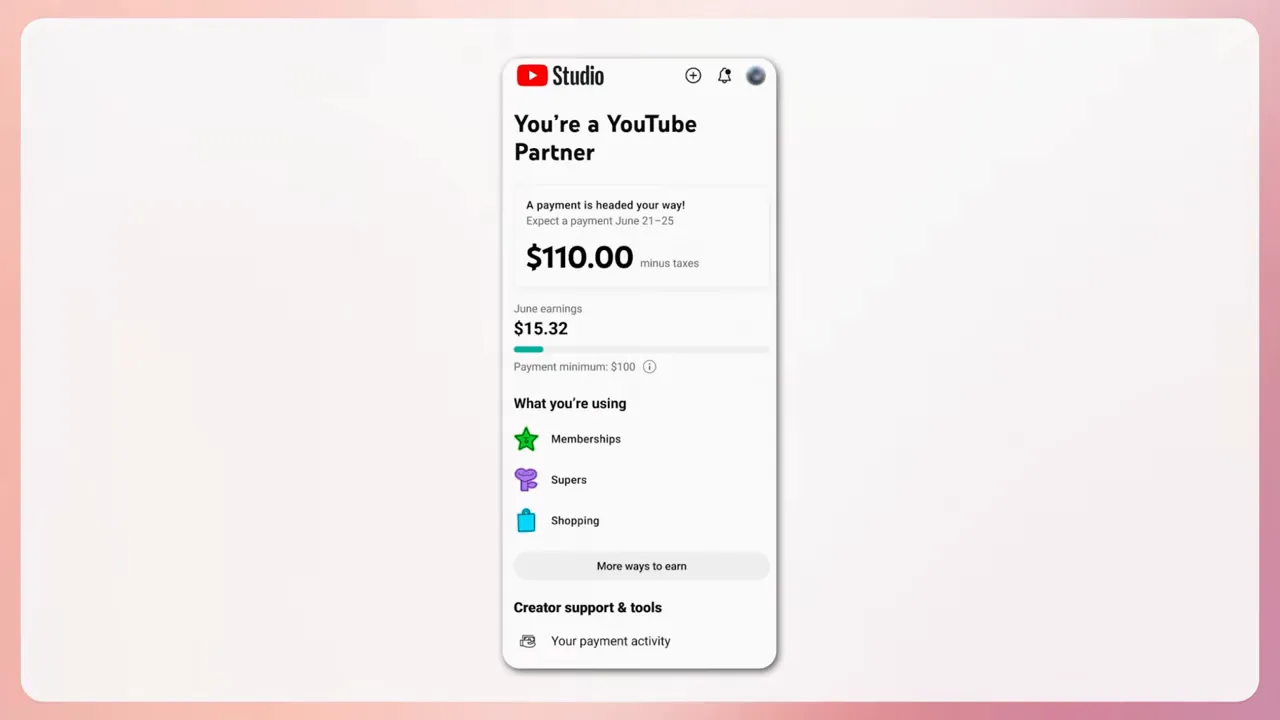
What the Studio payment activity shows now
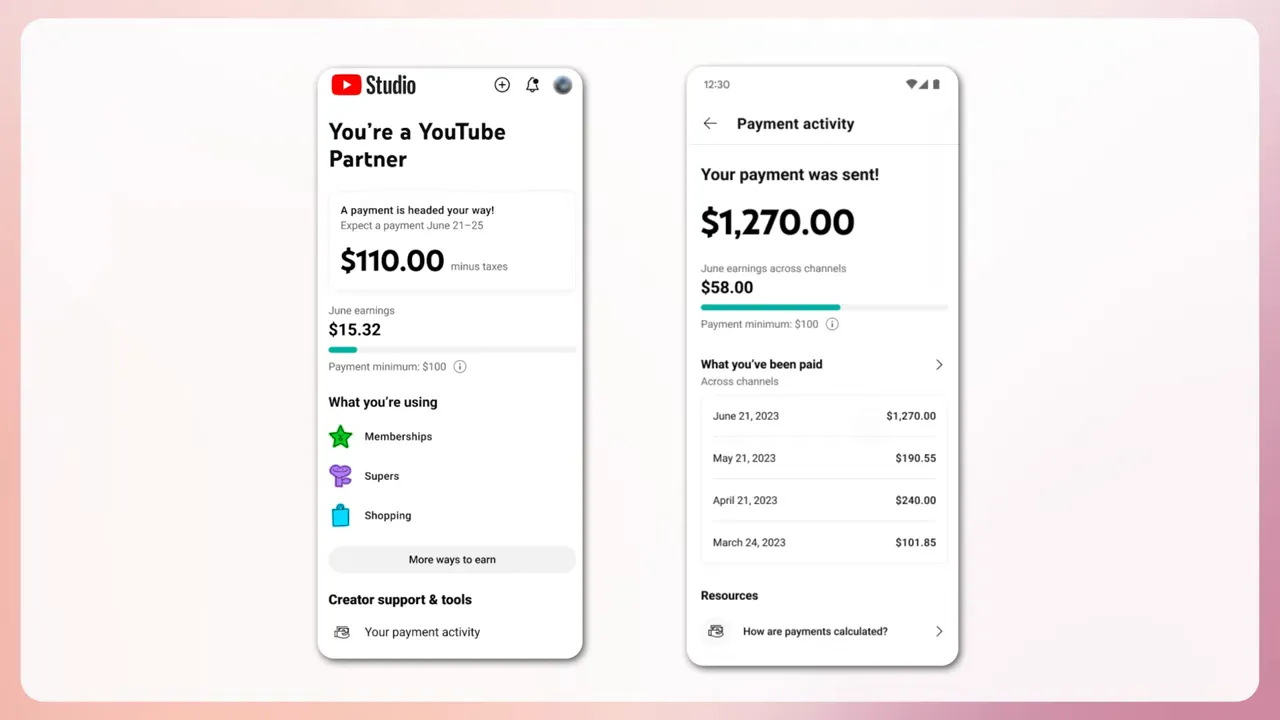
The Studio payment activity includes both an aggregated view across all channels and a per-channel breakdown. Expect to find:
- Aggregated payment activity — total payments paid to the linked AdSense account across the last 12 months.
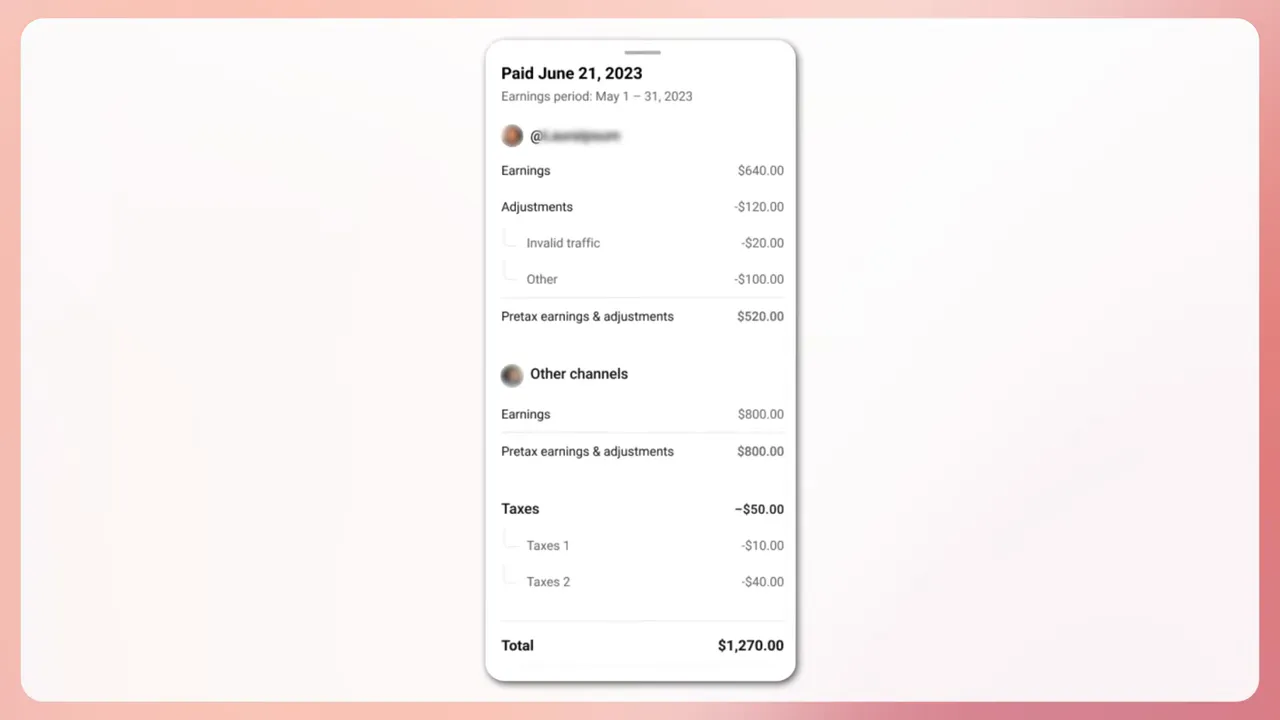
- Per-channel breakdown — how much each channel contributed to a payment or a period.
- Payment history — dates and amounts for each payment over the last 12 months, plus components that make up each payment (for example advertising revenue, Shorts revenue, and adjustments).
How to check whether you can access the expanded payment view
- Sign in to YouTube Studio using the email you think has revenue access.
- Open the Monetization or Revenue section and look for a "Payment activity" item. The updated interface shows aggregated totals and channel filters when eligible.
- If you don’t see aggregation options, verify that all channels are linked to the same AdSense account and that your email has revenue access on each channel or the brand account.
Many creators miss step three: channels may be linked to the same AdSense account but managed under different emails or user roles, which prevents the combined view.
How to link multiple channels to one AdSense account
Linking channels to a single AdSense account is a key prerequisite for this YouTube update. The exact flow depends on whether a channel is a brand account or a personal channel, but the general steps are:
- Open YouTube Studio for the channel you want to link.
- Go to Monetization and follow the prompts to connect AdSense. If the channel is eligible, you can select an existing AdSense account instead of creating a new one.
- Repeat for each channel you manage, choosing the same AdSense account during setup.
Tip: If a channel is part of a brand account, ensure the brand account is authorized to use the shared AdSense account.
Setting permissions so the aggregated view appears
The YouTube update requires a single email to have revenue data access across all channels. Two common permission models work:
- Channel permissions: Grant the email the "Manager" or "Editor" role with revenue access on each channel individually.
- Brand account permissions: If channels are under the same brand account, add the email as a role that includes revenue access for that brand account.
Make sure the email used for Studio is the same one tied to AdSense viewing or the one with revenue permissions on each channel. If multiple team members need access, set a shared finance email with the correct role to unlock the aggregated view.
Practical workflows for creators with multiple channels
Once the aggregated Studio payment activity is available, use it to streamline bookkeeping and planning. Below are practical workflows and examples.
Monthly reconciliation checklist
- Open Studio payment activity and set the date range to the previous month.
- Download or note each payment date and amount for the AdSense account.
- Use the per-channel breakdown to allocate revenue to each channel or project.
- Compare aggregated total to the AdSense payments center to ensure there are no adjustments or holds missing.
Example — Two channels, one AdSense
Imagine Channel A (educational) and Channel B (entertainment) both feed into the same AdSense account. The aggregated view shows total paid for the month. The per-channel breakdown shows Channel A contributed 60% of the total and Channel B 40%. That makes it simple to split revenue for tax or partnership settlements without exporting multiple reports.
Troubleshooting: common reasons you don’t see aggregation
If the updated payment activity isn’t visible, check the following:
- Different AdSense accounts: Channels must be linked to the same AdSense account. If one channel uses a different AdSense account, aggregation won’t work.
- Multiple emails with revenue access: If revenue access is split across several emails rather than a single email, aggregation will not appear.
- No revenue permissions: Having only upload or edit permissions is not enough. The email must have explicit revenue access.
- Brand account vs personal channel mismatch: A channel moved between brand and personal ownership may have broken links; re-linking may be required.
- Regional or policy limitations: Some monetization features vary by country. If you don’t see payment details, double-check regional eligibility for your channel and AdSense account.
What the payment breakdown can include
The breakdown for each payment often includes the revenue types and adjustments that compose the final payout. Common components:
- Advertising revenue from videos and Shorts
- Channel memberships and Super Chat (if enabled and linked to the same AdSense account)
- Shop or merch earnings routed through platform integrations
- Payment adjustments, refunds, or chargebacks
Using the per-channel breakdown helps you see whether a payment increase came from more ads, a successful merch drop, or adjustments.
Reporting and tax considerations
With this YouTube update, Studio becomes more useful for financial reporting, but there are still steps you should take for accurate tax reporting:
- Export or note payments monthly and keep records of per-channel contributions.
- Confirm currency and conversion rates used by AdSense if channels operate in different countries.
- Retain invoices and receipts tied to any fees or third-party services deducted from revenue before AdSense payment.
- Check threshold and payment schedule on the AdSense payments center: the aggregated Studio view displays payments but does not replace the official payments ledger in AdSense.
Best practices for multi-channel creators
- Designate a finance email: Use one dedicated email with revenue permissions across all channels for consistent access.
- Standardize channel naming and tags: When you export data into spreadsheets, consistent names reduce reconciliation errors.
- Monthly reconciliation routine: Compare Studio aggregated totals with AdSense and bank deposits to catch discrepancies early.
- Use the per-channel view for content decisions: Compare which channel types are driving payouts — Shorts, longform, memberships — and allocate promotion resources accordingly.
Pitfalls and misconceptions
Be aware of a few common misunderstandings related to this YouTube update:
- Studio aggregation is not an official tax report: It’s a convenience view. For official tax forms and payment records, rely on AdSense and payment processor records.
- Aggregation won’t combine different AdSense accounts: If channels use separate AdSense accounts, payments remain separate.
- Permissions matter more than ownership: You can own channels but still lack the correct revenue permission to see aggregated data. Grant explicit revenue access to the finance email.
- Data latency: Payment displays may lag behind real-time earnings; payments are finalized in AdSense after monthly calculations and held until the payment threshold and verification steps are complete.
Quick checklist to enable the new Studio payment activity
- Confirm all channels are linked to the same AdSense account.
- Create or designate a single finance email for revenue access.
- Assign revenue permissions to that email on each channel or brand account.
- Open YouTube Studio with the finance email and check Monetization > Payment activity for aggregated and per-channel views.
- If missing, verify AdSense account linkage in channel settings and re-link where necessary.
What this YouTube update means for teams and managers
Teams that manage creator networks, multiple shows, or separate channel brands will find the aggregated Studio view useful for centralized reporting. Use it to:
- Calculate revenue splits for collaborators and sponsors.
- Monitor which channels need support or promotional boosts.
- Spot payment anomalies quickly so finance teams can escalate to AdSense support if needed.
When to contact support
Contact support if:
- Your channels are linked to the same AdSense account but the aggregated view is not appearing despite a single email having revenue access.
- Payment totals in Studio and AdSense do not match after 30 days and you’ve already checked for currency and timing differences.
- Your account shows payment holds or unexpected adjustments and you need clarity beyond what Studio shows.
Summary: Use the update to simplify finance and strategy
This YouTube update to Studio payment activity reduces friction for creators and managers who run multiple channels tied to a single AdSense account. By centralizing aggregated totals and per-channel breakdowns inside Studio — provided a single email has revenue access — creators can speed up reconciliation, make smarter channel-level decisions, and keep better records for taxes and partnerships.
Follow the checklist above to enable access, and adopt the monthly reconciliation workflow to get the most value from the updated payment activity view.
Frequently asked questions
How do I know whether my channels are linked to the same AdSense account?
Open each channel’s Monetization settings in Studio and check the AdSense account listed. If the same AdSense publisher ID appears for each channel, they are linked to the same account. If they differ, select the option to link to an existing AdSense account and choose the same account for each channel.
Why can’t I see aggregated payments even though channels share one AdSense account?
The most common cause is permissions. A single email must have revenue access across all channels. Verify that the email you’re signing in with has the correct revenue permissions on every channel or is added at the brand account level.
Does the Studio aggregated view replace AdSense reports for taxes?
No. The Studio view is a convenience for inspection and reconciliation. For official tax reporting and full payment histories, use AdSense payment reports and bank deposit records.
Can multiple people see the aggregated view?
Yes, as long as each person signs in with an email that has revenue access across all linked channels. Many teams use a shared finance email to simplify access for multiple staff members.
Will this YouTube update show older payments beyond 12 months?
The current Studio payment activity view includes the past 12 months. For older records, check AdSense payment history or export reports from AdSense directly.
What if a channel uses a different currency?
AdSense settles payments in the currency set on the AdSense account. If channels generate revenue in different currencies, AdSense applies conversions before payout; you should review AdSense reports and bank statements for exact conversion figures.
Final takeaway
This YouTube update brings clearer, faster visibility into payments for creators who operate multiple channels under one AdSense account. By ensuring channels are linked correctly and revenue permissions are consolidated under one email, creators can use Studio to view aggregated payouts, drill into per-channel contributions, and simplify monthly financial workflows. Use the steps and checklist above to enable and leverage the feature effectively.
Watch a full video-breakdown |
|
Learn why you no longer need to jump between AdSense and the Studio App. |
| Watch the Walkthrough |
This article was created from the video This Week at YouTube: Studio Payment Activity Expansion with the help of AI.